Boost your gaming speed
Boost Your gaming speed with ababil.
If your screen freezes right before a clutch headshot, or your frame rate drops the moment three enemies show up at once, you already know the feeling. It’s not always about being a “better” gamer — most of the time, it’s about whether your gaming PC setup is actually built to keep up with you. The good news? You don’t need to throw your whole budget at a brand-new rig. A few smart upgrades and tweaks can transform a sluggish setup into a smooth, responsive gaming machine.
At Ababil.com.pk, we get asked almost daily how customers in Pakistan can improve their gaming performance without overspending on parts they don’t need. So we put together this guide — a practical, no-nonsense look at the upgrades and settings that actually move the needle on speed, FPS, and overall gaming experience.
1. Upgrade Your RAM Before Anything Else
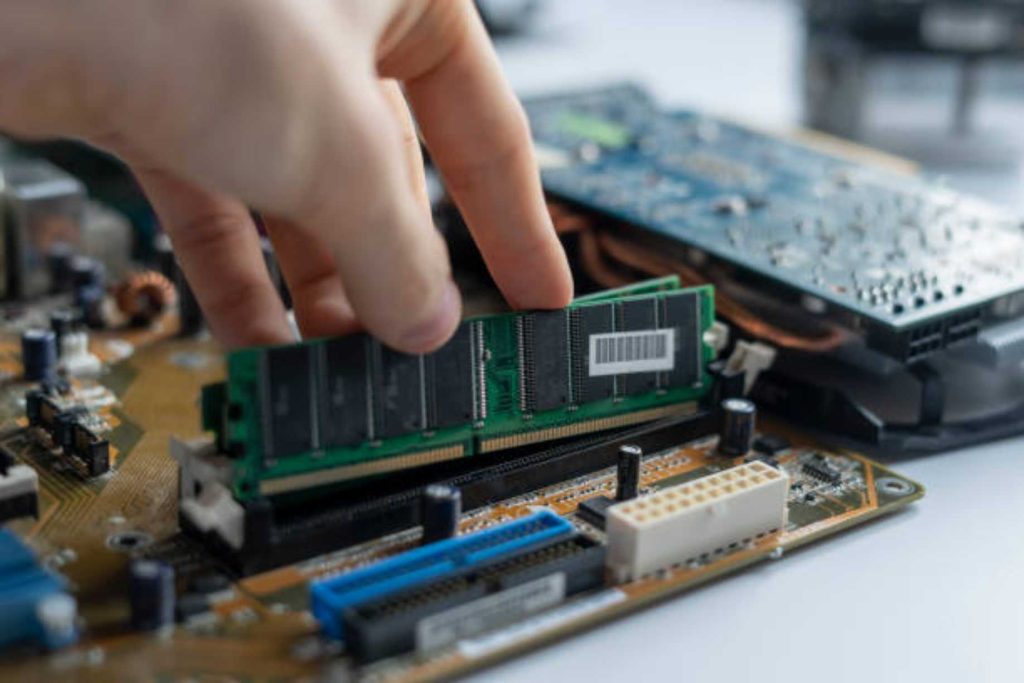
If there’s one upgrade that gives you the most noticeable jump in gaming speed for the least amount of money, it’s RAM. Most modern games are hungry for memory, and if you’re still running on 8GB, you’re leaving performance on the table. Bumping up to 16GB or even 32GB of RAM lets your system juggle the game itself, background apps, Discord, and your browser without stuttering or sudden frame drops.
When shopping for gaming RAM, pay attention to speed (measured in MHz) and not just capacity. A 16GB kit running at higher speeds like 3200Mhz will often outperform a slower 32GB kit in actual gameplay. Ababil.com.pk stocks a wide range of DDR3 and DDR4 RAM modules from trusted brands, (click here to explore) so whether you’re upgrading an older build or assembling a fresh gaming PC, you’ll find compatible options that fit your motherboard and budget.
2. Invest in a Solid State Drive (SSD)
Loading screens are the silent killer of gaming momentum. If you’re still running your games off a traditional hard disk drive (HDD), you’re waiting far longer than you should be — both for your operating system to boot and for individual game levels to load. Switching to an SSD, especially an NVMe SSD, can cut loading times dramatically and make the entire experience feel snappier from the moment you power on your PC. (click here to explore latest NVMe)
This isn’t just about convenience either. Many competitive games now stream assets in real time, and a slow drive can actually cause in-game stutters as textures fail to load fast enough. An SSD upgrade is one of the most cost-effective ways to enhance gaming performance, and it’s a change you’ll feel within the first five minutes of using your PC. Browse our SSD and storage collection on Ababil.com.pk/ssd for options that balance speed, capacity, and price.
3. Don’t Underestimate Your Graphics Card (GPU)
For anyone serious about gaming speed, the graphics card is usually the centerpiece of the conversation — and for good reason. Your GPU is what renders every frame you see, and an outdated or entry-level card will bottleneck even a powerful processor. If you’re playing modern titles at high settings or aiming for higher refresh rates, a capable graphics card is non-negotiable.
The right GPU depends on what you actually play and at what resolution. Casual and esports titles like Valorant or CS2 don’t need the most expensive card on the shelf, while AAA titles with ray tracing and high-resolution textures will benefit from a more powerful GPU. Ababil.com.pk carries a curated range of graphics cards suited to different budgets and gaming goals, so you’re not stuck choosing between “too weak” and “way more than you need.”
4. Keep Your System Cool — Heat Is the Enemy of Speed
Here’s something a lot of gamers overlook: thermal throttling. When your CPU or GPU runs too hot, it automatically slows itself down to avoid damage — which means your gaming speed quietly tanks during long sessions, even if your hardware is technically powerful enough. This is especially common in Pakistan’s warmer climate, where ambient room temperature already puts extra strain on cooling systems.
Investing in quality case fans, a good CPU cooler (air or liquid), and proper cable management for airflow can keep your components running at peak performance for longer. Dust buildup is another silent performance killer, so regular cleaning matters just as much as the hardware itself. Ababil.com.pk offers a solid lineup of cooling solutions, from budget-friendly fans to advanced liquid cooling kits, to help your rig stay cool under pressure — literally.
5. Optimize Your In-Game and Windows Settings
Hardware upgrades matter, but software tuning is just as important for gaming speed and shouldn’t be ignored. Many gamers install powerful components and then never touch their settings, leaving free performance on the table. A few adjustments can make a real difference:
- Lower or disable unnecessary visual effects in Windows (like transparency and animations) to free up system resources.
- Update your GPU drivers regularly — outdated drivers are a common, often-missed cause of poor frame rates and stuttering.
- Adjust in-game graphics settings to match your hardware rather than maxing out everything by default. Shadows and anti-aliasing are often the heaviest hitters with the least visual payoff.
- Set your power plan to “High Performance” rather than “Balanced” if you’re plugged into a desktop or stationary gaming laptop.
These tweaks cost nothing but a few minutes of your time, yet they’re often the difference between a choppy experience and a smooth one.
6. Upgrade Your Peripherals for a Faster, More Responsive Feel
Gaming speed isn’t only about frames per second — it’s also about how quickly your actions register on screen. A high refresh rate monitor (144Hz or higher) paired with a low-latency gaming mouse and a responsive mechanical keyboard can genuinely improve your reaction time and overall control. Click here to explore a high speed mouse at Ababil. Many gamers chase GPU upgrades while still using a basic Keyboard. Click here to find the best gaming keyboards at Ababil. 60Hz monitor, which caps the benefit of all that extra horsepower.
A wired connection also tends to be faster and more reliable than wireless for competitive gaming, reducing input lag that can cost you split-second decisions. At Ababil.com.pk, our peripherals section includes gaming monitors, mice, keyboards, and headsets chosen specifically for responsiveness, not just looks.Click here to find the best gaming Headphones/Headsets at Ababil
7. Don’t Ignore Your Internet Connection and Network Hardware
Online gaming speed depends just as much on your network as it does on your PC. High ping, packet loss, and unstable Wi-Fi can ruin an otherwise perfectly optimized gaming setup. If possible, connect your gaming PC directly to your router using an Ethernet cable rather than relying on Wi-Fi, especially for competitive multiplayer games where every millisecond counts. Please click here to find high speed WiFI booster at Ababil.
If a wired connection isn’t practical, investing in a quality Wi-Fi adapter or upgrading your router can noticeably reduce lag and connection drops. This is a step many gamers skip entirely, focusing only on internal hardware while their network quietly holds their experience back.
Building the Right Setup for Your Budget
The truth is, there’s no single upgrade that magically fixes gaming speed for everyone — it depends on what’s actually bottlenecking your specific setup. Sometimes it’s the RAM, sometimes it’s the GPU, and sometimes your hardware is fine but your settings or network are working against you. That’s exactly why we encourage customers to think of these upgrades as a system, not a shopping list of random parts.
At Ababil.com.pk, we don’t just sell computers and accessories — we help you figure out what your setup actually needs to perform better, whether you’re building a gaming PC from scratch or upgrading piece by piece. From RAM and SSDs to graphics cards, cooling systems, monitors, and gaming peripherals, our collection is built around real gaming needs, not just specs on a box.
If you’re not sure where to start, reach out to our team and tell us what games you play and what’s frustrating you about your current performance. We’ll help you put together an upgrade path that fits your budget and actually gets you the smoother, faster gaming experience you’re after.
Ready to level up your setup?
Explore our full range of low priced gaming components and accessories at Ababil.com.pk and take the first step toward faster load times, higher frame rates, and a gaming experience that finally keeps up with you